

As a supplier of PA amplifiers, I'm often asked by customers about the proper way to use a PA amplifier with a media player. In this blog post, I'll share some in - depth knowledge and practical steps to help you make the most of this combination.
Understanding the Basics
Before getting into the usage steps, it's essential to understand what a PA amplifier and a media player are. A PA (Public Address) amplifier is designed to increase the power of an audio signal so that it can be broadcast over a large area through speakers. On the other hand, a media player is a device that can play various audio and video formats, such as CDs, DVDs, USB drives, or stream content from online sources.
Selecting the Right PA Amplifier
The first step is to choose a PA amplifier that suits your needs. There are different types of PA amplifiers available in the market, and here are some of the popular ones:
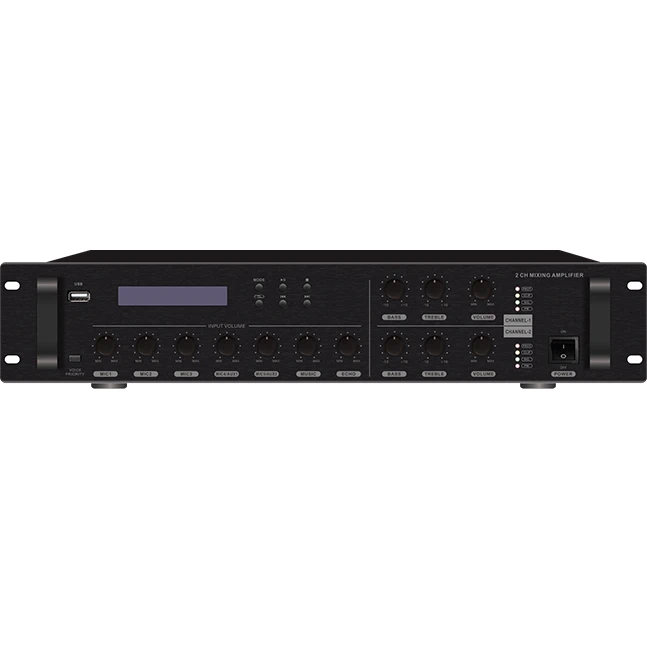
- Mixer Amplifier 2 Channel: This type of amplifier combines the functions of a mixer and an amplifier. It is suitable for small - to - medium - sized events where you may need to mix two audio sources. You can find more information about it Mixer Amplifier 2 Channel.
- Mini Mixer Amplifier: As the name suggests, it is a compact and portable option. Ideal for personal use or small gatherings, it offers basic mixing and amplification capabilities. Check out the details at Mini Mixer Amplifier.
- PA Power Amplifier: If you are dealing with large - scale events or require high - power audio output, a PA power amplifier is the way to go. It can handle heavy - duty tasks and drive multiple speakers. More details can be found PA Power Amplifier.
Connecting the Media Player to the PA Amplifier
Once you've selected the right PA amplifier, the next step is to connect it to your media player. Here are the general steps:
- Identify the Output Ports of the Media Player: Most media players have audio output ports such as 3.5mm headphone jacks, RCA ports, or optical audio outputs. Determine which type of output your media player has.
- Choose the Appropriate Cable: Based on the output port of the media player and the input port of the PA amplifier, select the right cable. For example, if your media player has a 3.5mm output and the amplifier has an RCA input, you'll need a 3.5mm to RCA adapter cable.
- Connect the Cable: Plug one end of the cable into the audio output port of the media player and the other end into the corresponding input port of the PA amplifier. Make sure the connections are secure.
Setting Up the PA Amplifier
After connecting the media player, you need to set up the PA amplifier correctly:
- Power On: Plug the PA amplifier into a power source and switch it on. Wait for it to boot up.
- Volume and Gain Adjustment: Start by setting the volume and gain controls to their minimum positions. This helps prevent any sudden loud noises that could damage the speakers or your ears.
- Input Source Selection: Use the input selector on the PA amplifier to choose the input source that corresponds to the media player. For example, if you connected the media player to the "Aux" input, select "Aux" on the amplifier.
- Channel Balance: If your PA amplifier has multiple channels, adjust the channel balance to ensure that the audio is evenly distributed.
Testing the Setup
Once everything is connected and set up, it's time to test the system:

- Play Audio on the Media Player: Select an audio track on your media player and start playing it.
- Adjust the Volume: Slowly increase the volume on the PA amplifier until you reach a comfortable listening level. Pay attention to the sound quality. If there is any distortion or noise, stop and check the connections and settings.
- Check Speaker Output: Walk around the area where the speakers are placed to ensure that the audio is being distributed evenly. If you notice any dead spots or uneven sound, you may need to adjust the speaker placement or the amplifier settings.
Troubleshooting Common Issues
Even with proper setup, you may encounter some issues. Here are some common problems and their solutions:
- No Sound:
- Check the power connections of both the media player and the PA amplifier.
- Make sure the volume controls on both devices are turned up.
- Check the cable connections to ensure they are secure.
- Distorted Sound:
- Reduce the volume on the media player and the PA amplifier. High volume levels can cause distortion.
- Check the audio source. A low - quality audio file may also cause distortion.
- Noise in the Audio:
- Use shielded cables to reduce electromagnetic interference.
- Make sure the PA amplifier is not placed near other electronic devices that may cause interference.
Optimizing the Sound Quality
To get the best sound quality from your PA amplifier and media player combination, consider the following tips:
- Use High - Quality Audio Files: High - resolution audio files will provide better sound quality compared to low - quality ones.
- Proper Speaker Placement: Place the speakers at the right height and distance from each other to ensure even sound distribution.
- Room Acoustics: Consider the acoustics of the room where you are using the system. Adding acoustic panels or diffusers can help improve the sound quality.
Conclusion
Using a PA amplifier with a media player can be a great way to enhance your audio experience, whether it's for a small party, a business presentation, or a large - scale event. By following the steps outlined in this blog post, you can set up and use the system effectively.
If you are interested in purchasing a PA amplifier or have any questions about our products, feel free to reach out to us for a detailed discussion. We are committed to providing you with the best solutions for your audio needs.
References
- Audio Engineering Society Handbook, Third Edition
- Professional Audio: The New Audio Engineer's Guide