

Yo, what's up everyone! I'm here as a supplier of projection speakers, and today we're gonna dig into the question: Can a projection speaker be connected to a laptop?
First off, let's get a bit of a lowdown on what projection speakers are. These bad boys are a pretty cool piece of tech. They're not your average speakers. Projection speakers not only pump out some great sound but also come with a projection feature. You can use them to project images or videos, which makes them super versatile for all sorts of setups, like home theaters, small presentations, or just having a fun movie night in your backyard.

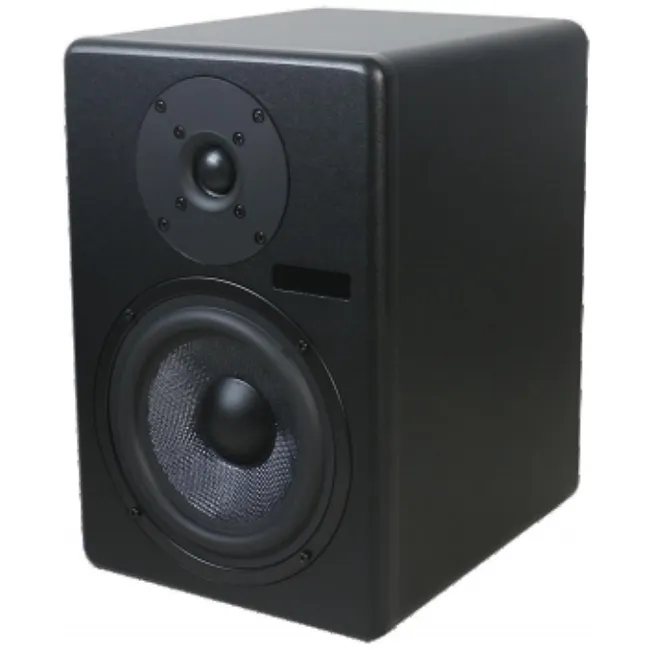
Now, onto the big question: can you connect them to a laptop? The short answer is yes, in most cases. There are a few different ways to do this, and I'll break them down for you.
Wired Connections
One of the most common and reliable ways to connect a projection speaker to a laptop is through a wired connection. The most popular cable you'll use for this is an HDMI cable. Most modern laptops come equipped with an HDMI port, and many projection speakers do too. It's a straightforward process. All you gotta do is plug one end of the HDMI cable into your laptop's HDMI port and the other end into the HDMI input on your projection speaker.
Once you've made the physical connection, you'll need to tell your laptop to send the audio and video signal to the projection speaker. Usually, you can do this by pressing a function key combination on your laptop. On most Windows laptops, it's something like Fn + F4 or Fn + F5. On Macs, you can go to the "System Preferences" and then click on "Displays" to select the projection speaker as your display.
The great thing about using an HDMI connection is that it can carry both high - quality audio and video signals at the same time. So you'll get crisp visuals and clear sound all in one go. It's perfect for watching movies, playing games, or giving presentations where you need top - notch audio - visual quality.
Another option for a wired connection is using a VGA cable. If your laptop or projection speaker only has a VGA port, this is a good alternative. VGA is an older technology compared to HDMI, so the video quality might not be as sharp, but it still gets the job done. You connect the VGA cable between your laptop and the projection speaker, and then adjust the display settings on your laptop as you would with an HDMI connection.
Wireless Connections
If you're not a fan of cables or want more flexibility in terms of placement, wireless connections are the way to go. Bluetooth is a popular wireless technology that can be used to connect a projection speaker to a laptop. Most laptops these days have built - in Bluetooth capabilities.
To connect via Bluetooth, first, make sure your projection speaker is in pairing mode. This usually involves pressing a specific button on the speaker until the Bluetooth indicator light starts flashing. Then, on your laptop, go to the Bluetooth settings. You can usually find this in the control panel on Windows or in the menu bar on a Mac. Search for available devices, and when your projection speaker shows up in the list, select it and click "Connect".
The advantage of Bluetooth is that it's super convenient. You can move your laptop around within a certain range without having to worry about cables getting in the way. However, there are some limitations. The audio quality might not be as high as with a wired connection, and there could be some latency issues, especially when it comes to watching videos or playing games.
Wi - Fi is another wireless option. Some projection speakers support Wi - Fi connectivity, which allows you to stream audio and video from your laptop over your home or office network. To set this up, you'll need to connect both your laptop and the projection speaker to the same Wi - Fi network. Then, use the speaker's app or the built - in media player on your laptop to stream content to the speaker.
Wi - Fi connections generally offer better audio and video quality than Bluetooth and less latency. But it does require a stable Wi - Fi network. If your network is slow or unstable, you might experience buffering or interruptions.
Compatibility Issues
Now, it's not always a smooth sailing when it comes to connecting a projection speaker to a laptop. There can be some compatibility issues. For example, if your laptop is an older model, it might not have the right ports for the projection speaker. Or if the speaker uses a new wireless protocol that your laptop doesn't support, you'll run into problems.
Sometimes, the software on your laptop might not be up - to - date, which can cause issues with the connection. It's always a good idea to make sure your laptop's operating system and drivers are updated before trying to connect to a projection speaker.
Also, some projection speakers might require specific software or apps to be installed on your laptop for full functionality. Make sure to check the user manual of your projection speaker and follow the instructions carefully.
Other Considerations
When you're using a projection speaker with your laptop, there are a few other things to keep in mind. First, power consumption. Projection speakers can be power - hungry, especially if you're using the projection feature for long periods. Make sure your laptop has enough battery life or is plugged into a power source.
Another thing is the projection size and quality. You'll need to adjust the settings on your projection speaker to get the right size and clarity for your viewing environment. Some projection speakers come with built - in keystones and focus adjustment features to help you get the perfect image.
Our Projection Speakers and Related Products
As a projection speaker supplier, we offer a wide range of high - quality projection speakers that are designed to be easily connected to laptops. Whether you need a speaker for personal use at home or for professional presentations in the office, we've got you covered.
In addition to our projection speakers, we also have other great audio products. Check out our Active Wall Speakers, which are perfect for adding some great sound to your living room or office walls. Our Outdoor Garden Speaker is ideal for creating a great outdoor audio experience. And if you're looking for something to mount on your ceiling, our Ceiling Mount Bluetooth Speakers are a great choice.
Contact Us for Procurement
If you're interested in our projection speakers or any of our other audio products, we'd love to hear from you. Whether you're a small business looking to upgrade your presentation equipment or an individual looking for a great home entertainment setup, we can provide you with the right solutions. Just reach out to us, and we can start a conversation about your needs and how we can help you. We're here to make sure you get the best audio - visual experience possible.
References
- "Projection Speaker User Manuals"
- "Laptop Operating System Guides"