

Integrating a Pro Mixer with a DAW can be a challenging yet rewarding task for audio professionals and enthusiasts alike. As a supplier of Pro Mixers, I've witnessed firsthand the transformative potential of this combination, enabling users to achieve professional-grade audio mixing and production. In this blog post, I'll guide you through the process, sharing valuable insights and practical tips to help you seamlessly integrate your Pro Mixer with a Digital Audio Workstation (DAW).
Understanding the Basics
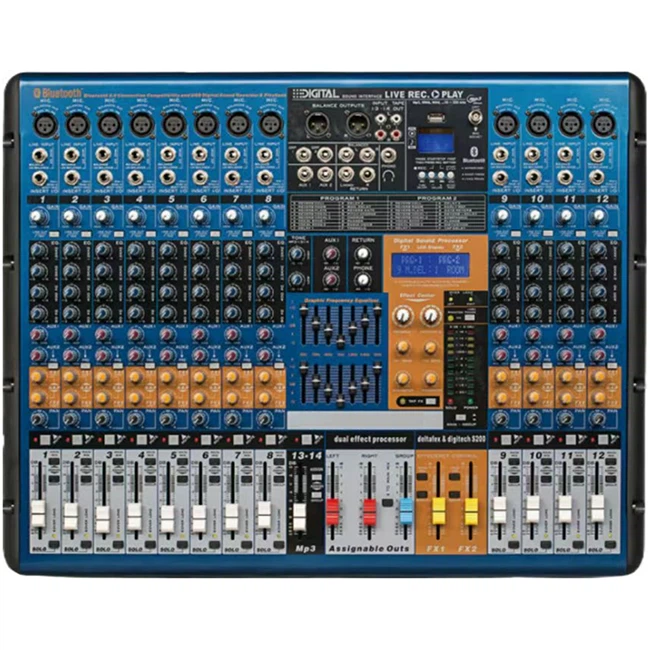
Before we dive into the integration process, let's briefly understand the roles of a Pro Mixer and a DAW. A professional mixer, such as the 10 Channel Mixer or 12 Channel Powered Mixer, is a hardware device that allows you to combine, control, and adjust multiple audio signals. It offers features like gain control, equalization, panning, and effects processing, giving you precise control over the audio mix.
On the other hand, a DAW is software that enables you to record, edit, mix, and master audio. It provides a virtual workspace where you can arrange and manipulate audio tracks, add plugins for effects and processing, and export your final mix. Popular DAWs include Ableton Live, Pro Tools, Logic Pro, and FL Studio.
Selecting the Right Pro Mixer for Your DAW
The first step in integrating a Pro Mixer with a DAW is to choose the right mixer for your needs. Consider the following factors when making your selection:
- Number of Channels: Determine the number of audio inputs you'll need based on your recording and mixing requirements. For smaller projects, a 10 Channel Mixer may be sufficient, while larger projects may require a 12 Channel Powered Mixer or a mixer with even more channels.
- Connectivity Options: Ensure that the mixer has the necessary connectivity options to interface with your DAW. Look for mixers with USB, MIDI, and audio outputs that are compatible with your computer and DAW software.
- Features and Functionality: Consider the features and functionality you need, such as built-in effects, EQ, compression, and monitor control. Some mixers, like the Digital PA Mixer, offer advanced digital features that can enhance your mixing capabilities.
- Budget: Set a budget for your mixer purchase and look for models that offer the best value for your money. Remember, investing in a high-quality mixer can significantly improve the quality of your audio productions.
Connecting the Pro Mixer to Your DAW
Once you've selected the right Pro Mixer for your DAW, it's time to connect the two devices. The connection process may vary depending on the mixer and DAW you're using, but the following general steps should apply:
- Connect the Mixer to Your Computer: Use a USB cable to connect the mixer to your computer. Make sure your computer recognizes the mixer as an audio device. You may need to install drivers for the mixer if they're not already installed.
- Configure the Audio Settings in Your DAW: Open your DAW software and navigate to the audio settings. Select the mixer as your audio input and output device. You may need to adjust the sample rate and buffer size settings to optimize the performance of your system.
- Connect the Audio Sources to the Mixer: Connect your audio sources, such as microphones, instruments, or other audio devices, to the input channels of the mixer. Use appropriate cables, such as XLR, TRS, or RCA, depending on the type of audio source and the input connectors on the mixer.
- Route the Audio Signals from the Mixer to the DAW: Use the mixer's output channels to send the audio signals to the DAW. You can route individual channels or groups of channels to the DAW, depending on your mixing requirements. Some mixers may have dedicated outputs for sending the main mix or individual channels to the DAW.
- Test the Connection: Once you've connected the mixer to the DAW and routed the audio signals, it's time to test the connection. Play some audio through the mixer and check if you can hear it in the DAW. You may need to adjust the gain levels on the mixer and the input levels in the DAW to ensure a proper signal level.
Configuring the Mixer and DAW for Optimal Performance
After connecting the Pro Mixer to your DAW, you'll need to configure both devices for optimal performance. Here are some tips to help you get the most out of your setup:
- Set the Gain Levels: Proper gain staging is crucial for achieving a clean and balanced audio mix. Set the gain levels on the mixer's input channels to ensure that the audio signals are neither too low nor too high. You want to avoid clipping, which can introduce distortion and degrade the quality of your audio.
- Use the EQ and Effects: The mixer's built-in EQ and effects can be used to shape the sound of your audio signals. Experiment with different EQ settings to enhance the clarity, warmth, and presence of your tracks. You can also add effects, such as reverb, delay, and compression, to add depth and dimension to your mix.
- Create Audio Tracks in the DAW: In your DAW, create audio tracks for each input channel on the mixer. This will allow you to record and edit the audio signals separately. You can also group the audio tracks together to create submixes and apply effects and processing to the entire group.
- Automate the Mix: Automation is a powerful feature that allows you to change the parameters of your mix over time. You can automate the gain, pan, EQ, and effects settings to create dynamic and engaging mixes. Experiment with different automation techniques to add movement and interest to your tracks.
- Monitor the Mix: Use headphones or monitors to monitor the mix in real-time. Make sure you're listening to the mix at a moderate volume to avoid fatigue and accurately assess the sound quality. You may also want to use a reference track to compare your mix to a professionally mixed and mastered recording.
Troubleshooting Common Issues
While integrating a Pro Mixer with a DAW is generally a straightforward process, you may encounter some common issues along the way. Here are some troubleshooting tips to help you resolve these issues:

- No Audio Signal: If you're not getting any audio signal in the DAW, check the following:
- Make sure the mixer is powered on and connected to the computer properly.
- Check the audio settings in the DAW to ensure that the mixer is selected as the audio input and output device.
- Verify that the audio sources are connected to the mixer and that the gain levels are set correctly.
- Audio Distortion: If you're experiencing audio distortion in the DAW, try the following:
- Lower the gain levels on the mixer's input channels to avoid clipping.
- Check the audio settings in the DAW to ensure that the input levels are within the acceptable range.
- Make sure the cables are properly connected and not damaged.
- Latency Issues: Latency refers to the delay between the time an audio signal is input and the time it is output. If you're experiencing latency issues, try the following:
- Reduce the buffer size in the audio settings of the DAW. This will decrease the latency but may also increase the CPU usage.
- Make sure your computer meets the minimum system requirements for the DAW and the mixer.
- Close any unnecessary applications running on your computer to free up system resources.
Contact Us for Your Pro Mixer Needs
Integrating a Pro Mixer with a DAW can significantly enhance your audio production capabilities. Whether you're a professional audio engineer, a musician, or an audio enthusiast, our range of Pro Mixers, including the 10 Channel Mixer, Digital PA Mixer, and 12 Channel Powered Mixer, can help you achieve professional-grade results.
If you're interested in learning more about our Pro Mixers or have any questions about integrating them with your DAW, please feel free to contact us. We're here to provide you with the support and guidance you need to make the most of your audio setup.
References
- "Audio Mixing for Beginners" by Sound on Sound
- "The Art of Digital Audio Workstations" by Pro Tools Expert
- "Pro Mixing Techniques" by Mix Magazine